You have a finished email design as a single PNG or JPG — from Figma, Photoshop, Canva or a client — and you need a working Klaviyo template: clickable, readable without images, and sensible on a phone. This page is the whole workflow, done by hand in Klaviyo's own editor. A tool can speed up parts of it, but the decisions are the same either way.
Before you start: check the image
Klaviyo accepts JPEG, PNG and GIF files, up to 10 MB each, and recommends keeping images at 1 MB or smaller so they load quickly. For full-width images it suggests 600 to 1000 px wide and under 2000 px tall, and it describes a common approach of inserting an image at 2x the size it will display and scaling it down in the template, so it stays sharp.[1]
In practice that means:
- Export at 1200 px wide for a 600 px email. If your design file is already 1200 px wide, export at 1x. If it is 600 px wide, export at 2x.
- Expect the full design to be tall. A long design at 2x will be well past Klaviyo's suggested 2000 px height for a full-width image. That's fine, because you aren't uploading it in one piece.
- Work from the final, approved version. A late copy change means redoing the cuts, links and alt text for every row it touches.
You can work out the exact export width and a file-size budget per image with the email image size calculator.
Step 1: decide what stays an image and what becomes live text
This is the decision that matters most, and the easiest one to skip. Go through the design section by section and sort each one:
| Section | Keep as an image | Rebuild as live text |
|---|---|---|
| Hero with a styled headline over a photo | Usually | If the headline is plain text on a flat color |
| Product photos | Yes | — |
| Prices, discount codes, dates, deadlines | Avoid | Yes, they change and must be readable |
| Body paragraphs | Avoid | Yes |
| Buttons | Possible, as a linked image | A Klaviyo button block is live and editable |
| Footer, address, legal copy | No | Yes |
| Unsubscribe link | Never | Always |
Two reasons to rebuild text rather than ship it as pixels. First, some inboxes, including Outlook and Apple Mail, can block images depending on the recipient's settings, and anything that is only in an image disappears with it.[1] Second, accessibility: WCAG's success criterion 1.4.5 says that when the technology can produce the visual presentation, information should be conveyed as text rather than as an image of text, because people can't change how text in an image looks — its size, color or spacing.[8]
You won't rebuild everything — a styled hero headline is often an image for good reason — but a price that only exists inside a JPEG is a price nobody can read with images off.
Step 2: plan the cuts
Print the design or open it at full height, and mark where you will cut. Good cut lines:
- Run through flat background, between sections, never through text, faces or products.
- Follow link boundaries. In Klaviyo, an image block has one link address[4]. If two things in one row must go to different URLs, that row needs to be split into columns.
- Keep rows a sensible height. One row per section is usually right. Keep each full-width slice under Klaviyo's suggested 2000 px height[1]; very thin rows add blocks without adding anything.
- Separate the parts you're rebuilding as text. Cut directly above and below them, so the image slices on either side line up with the live text block in between.
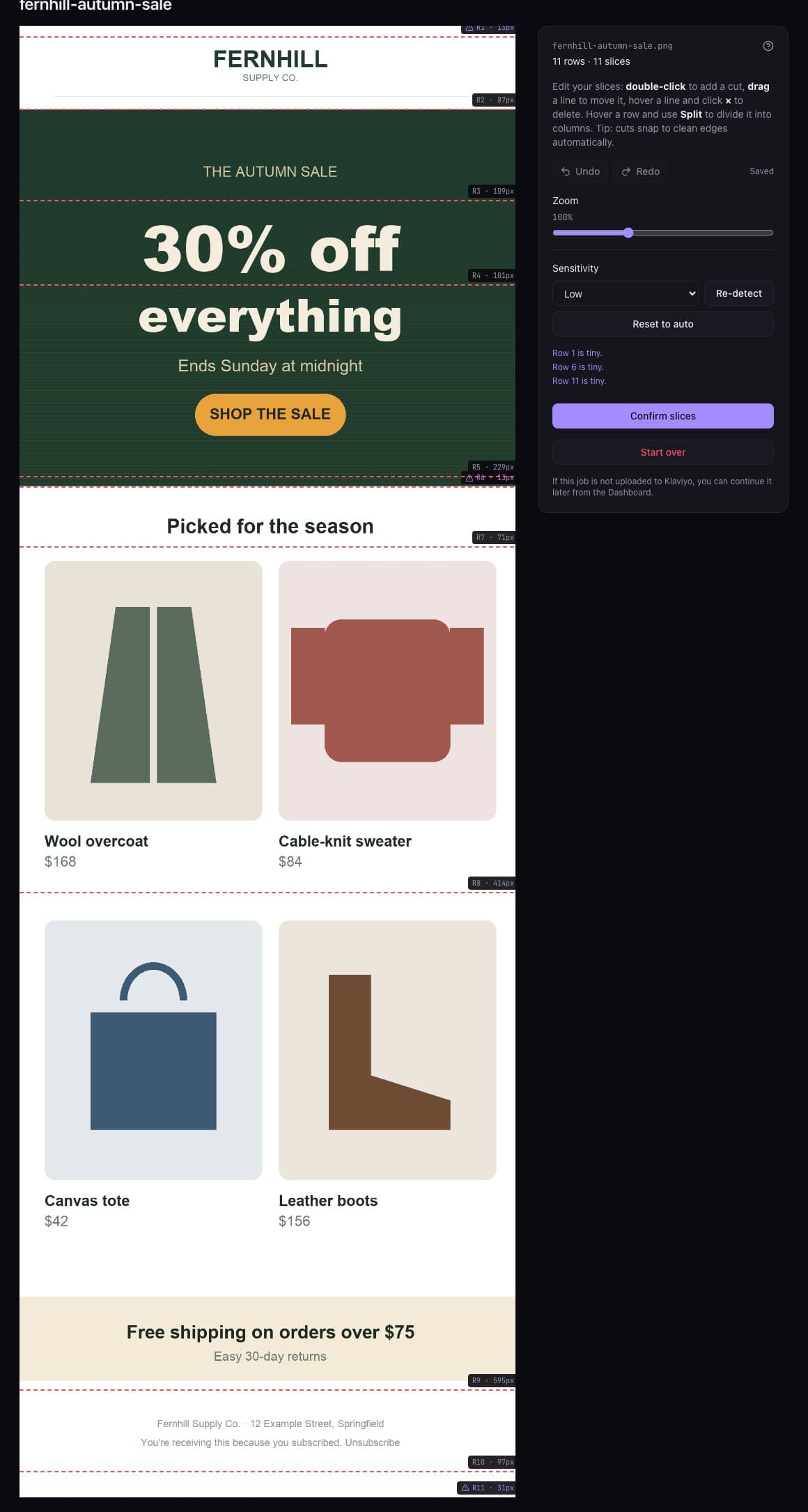
A product grid deserves extra thought. If each product needs its own link, cut the row into columns. Decide now whether those columns should stack on a phone (each product full-width, one under another) or stay side by side (smaller, but the grid survives). Step 4 depends on it.
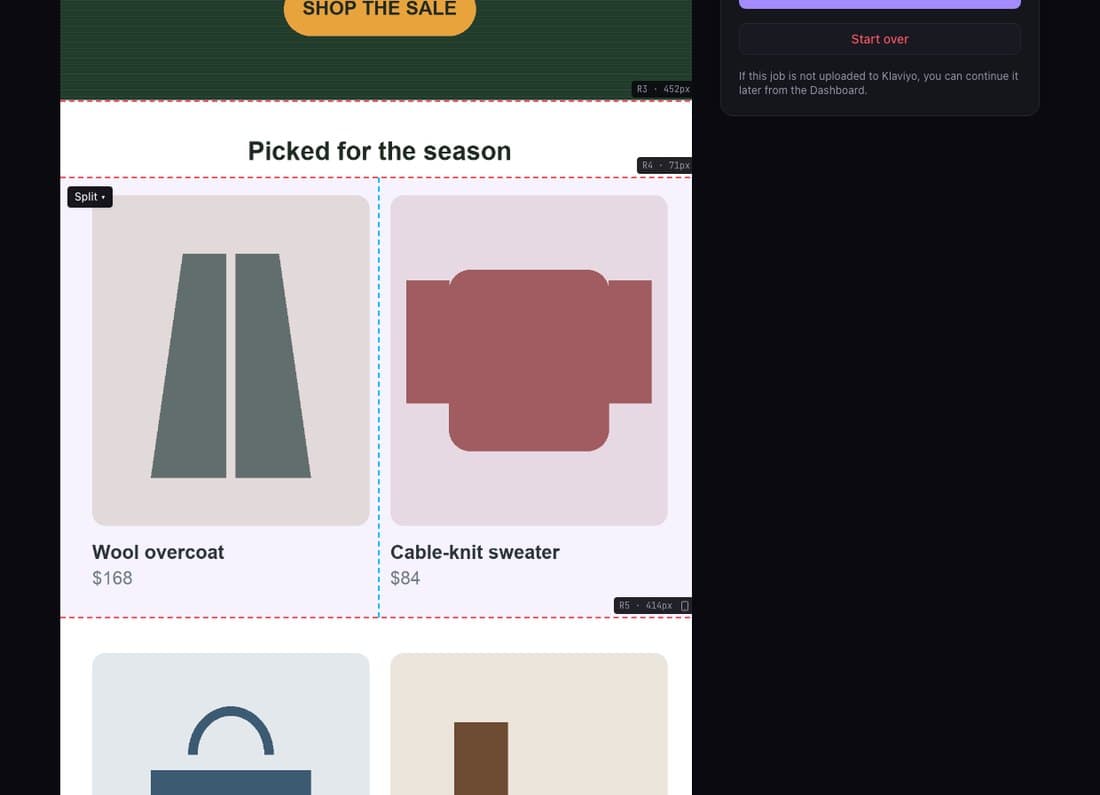
Step 3: export the slices
Crop each row (and each column, where you split one) to its own file, in order, with names that sort correctly: slice-01.jpg, slice-02.jpg, and so on.
- Photographs suit JPEG, because they tolerate lossy compression well.
- Logos, flat graphics and text on solid color suit PNG, because lossy compression leaves visible blur and fringes around text and sharp edges.[7]
- Check every file size. Klaviyo's limit is 10 MB per image, but its recommendation is 1 MB or less, and it offers built-in compression when you upload (not for GIFs).[1]
Step 4: build the template in Klaviyo
Create a new drag-and-drop template, then rebuild the email from top to bottom.
Add an image block per row
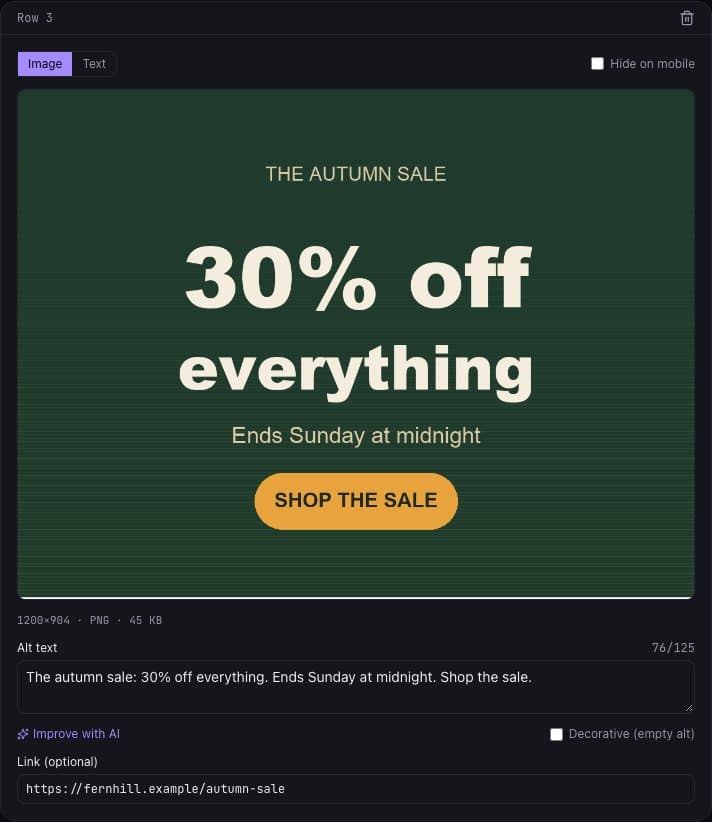
Drag an image block into the template for each single-column row and upload its slice. In the block's settings, set the alt text and the link address, and keep the image full-width.[4]Rebuild multi-column rows
Klaviyo has three ways to put content side by side. A split block is exactly two columns of image or text, with widths you set as percentages and an option to keep them side by side on mobile. Columns allow 1 to 4 columns from a limited set of width options and, with mobile optimization enabled, stack on mobile by default. Table blocks stay side by side on mobile, but Klaviyo warns screen readers have a hard time with them.[3]Add the live text
Insert text blocks (and button blocks, if you rebuilt the buttons) where you cut them out in Step 2. Match the font, size and colors to the design as closely as the editor allows.Add the footer and unsubscribe link
Klaviyo requires an unsubscribe link in marketing emails, and adds one at the bottom if it doesn't find the tag. Use the unsubscribe tag in a text block for a normal text link; for a button or a link-address field use the unsubscribe-link tag instead, because the plain tag generates a full HTML link and breaks there.[6]
If you see thin lines or gaps between slices that should touch, look at the section and block padding first. Klaviyo's sections have their own padding styles, and the spacer block adds space between stacked blocks on purpose.[4]
Step 5: write the alt text
Every image needs alt text[1], and what goes in it depends on the slice:
- A slice with words in it: the alt text must contain the same text that's in the image[9]. "Autumn sale, 30% off everything, ends Sunday" — not "banner image".
- A product photo: what it is, in the words a shopper would use. "Navy wool overcoat, front view."
- A linked slice: say where the click goes if the image itself doesn't. "Shop the new arrivals."
- A purely decorative slice — a spacer strip, a divider, a background texture — gets an empty alt (
alt=""), so screen readers skip it instead of announcing a file name[10].
Keep it short. A screen-reader user hears every slice in order, and a dozen long descriptions of one email is a lot to listen to.
Step 6: QA before it leaves your hands
Before the template is approved
- Every linked slice opens the right page, with the right tracking parameters
- No slice links to a placeholder or to the homepage by accident
- Alt text is on every image, and matches the words in it
- Decorative slices have an empty alt
- Prices, dates and codes are live text and correct
- The email reads sensibly with images turned off
- Mobile preview: columns stack (or don't) the way you planned
- No visible gaps between slices
- The unsubscribe link is present and works
- Total size in Klaviyo's preview is comfortably under 95 KB
On the last item: Gmail clips emails on desktop at about 102 KB, and that limit counts the email's code — text, styles, links and other HTML — but not the image files. Klaviyo's preview shows the total size and flags anything at 95 KB or more as likely to clip.[5] So in a sliced email, the image files don't push you toward the limit; the code behind every block, section and style does. You can measure exported HTML with the Gmail clipping checker.
Where the time goes
Done by hand, most of the work isn't the uploading. It's deciding where to cut, re-cutting when the first attempt splits a line of text, typing a link and alt text into every block, and rebuilding product grids as columns. Klaviyo's Figma plugin removes the export-and-upload step for Figma users[2], but its help article doesn't cover cutting, linking, alt text or assembling the template, so those are still yours to do. If you're still deciding whether a dedicated tool is worth it, what an email slicer does explains the category.